How to edit climbing videos: trim, follow, speed up rests, slow the crux
A raw climbing clip is mostly waiting: chalking up, shaking out, lowering off. Six steps turn it into something people watch to the end.
1. Trim the start and the end
Cut the walk to the wall and the chalking up. Start a second before your first move. End on the top hold, the clip of the anchor, or the fall, not on the lower-off.
2. Keep the climber in the frame
A wide clip of a whole wall is hard to watch on a phone. Crop in and follow the climber, especially for vertical 9:16 posts. In a general editor that means a lot of keyframes; climbing apps can do it from tracking.
3. Speed up the rests
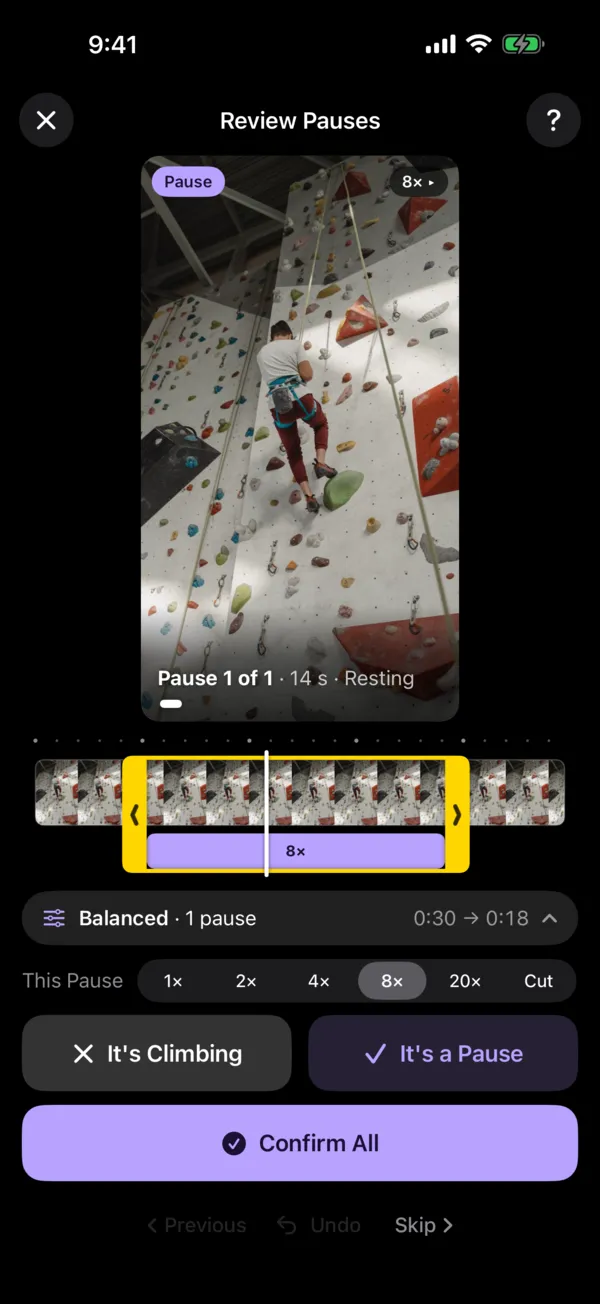
Rests are where viewers leave. Play shake-outs and chalk-ups at 4× to 8×, and long rests faster or cut them. Keep a little of each pause so the video still feels like a real climb.
4. Slow the crux
Slow the one move that matters, usually a dyno or a big reach, to about half speed for one or two seconds. It looks smooth if you filmed at 60 fps.
5. Add what the climb was
The grade, the route or problem name, the gym, maybe your heart rate. A line of text at the end does more than a long caption.
6. Music, then export
Pick a song that fits the pace and cut so the climb ends with the music. Export 1080 × 1920 for Reels, TikTok, Shorts or 小红书, and keep it under a minute if you can.
General editors such as CapCut or iMovie can do all of this by hand. The slow part is finding the rests and following the climber, which is what climbing-specific apps automate.